
Connect Claude to Your Sage 100 Contractor Data — DataXcel MCP Connector Setup
· By Mike Hagberg
A friendly, step-by-step guide for contractors and controllers: connect Anthropic Claude to your live Sage 100 Contractor data with the DataXcel MCP connector, and start asking about jobs, WIP, change orders, and costs in plain English — no SQL, no exports.
Ask your Sage 100 data questions in plain English
Imagine opening Claude on a Monday morning and typing: "Which of my jobs are over budget right now?" — and getting a real answer, pulled straight from your live Sage 100 Contractor data, in seconds. No exports. No pivot tables. No waiting on someone to build a report.
That's what the DataXcel MCP connector does. Once it's connected, Claude can read your live jobs, WIP, change orders, and job costs and answer questions about them in plain English. You ask; Claude looks at your real numbers and tells you. This guide walks you through the whole setup — it takes about ten minutes, and you only do it once.
Who this is for: Owners, controllers, project managers, and office staff. You do not need to be technical. If you can copy and paste, you can do this.
What you'll need before you start
Two things, and that's it:
- A DataXcel workspace. This is your private reporting site — it lives at an address like
yourcompany.xcel.report. If you're already a DataXcel customer, you have one. (Not a customer yet? Skip to the bottom and book a setup call — we'll get you live.) - A Claude account. Free or paid both work. If you don't have one, sign up at claude.ai. The desktop app is recommended because it makes connectors easy to manage.
Have both? Great. Let's connect them.
Step 1 — Get your Metabase API key
Your DataXcel workspace runs on Metabase, and Claude needs a key to read from it. Here's the exact click path. Take your time — this is the one part with several clicks.
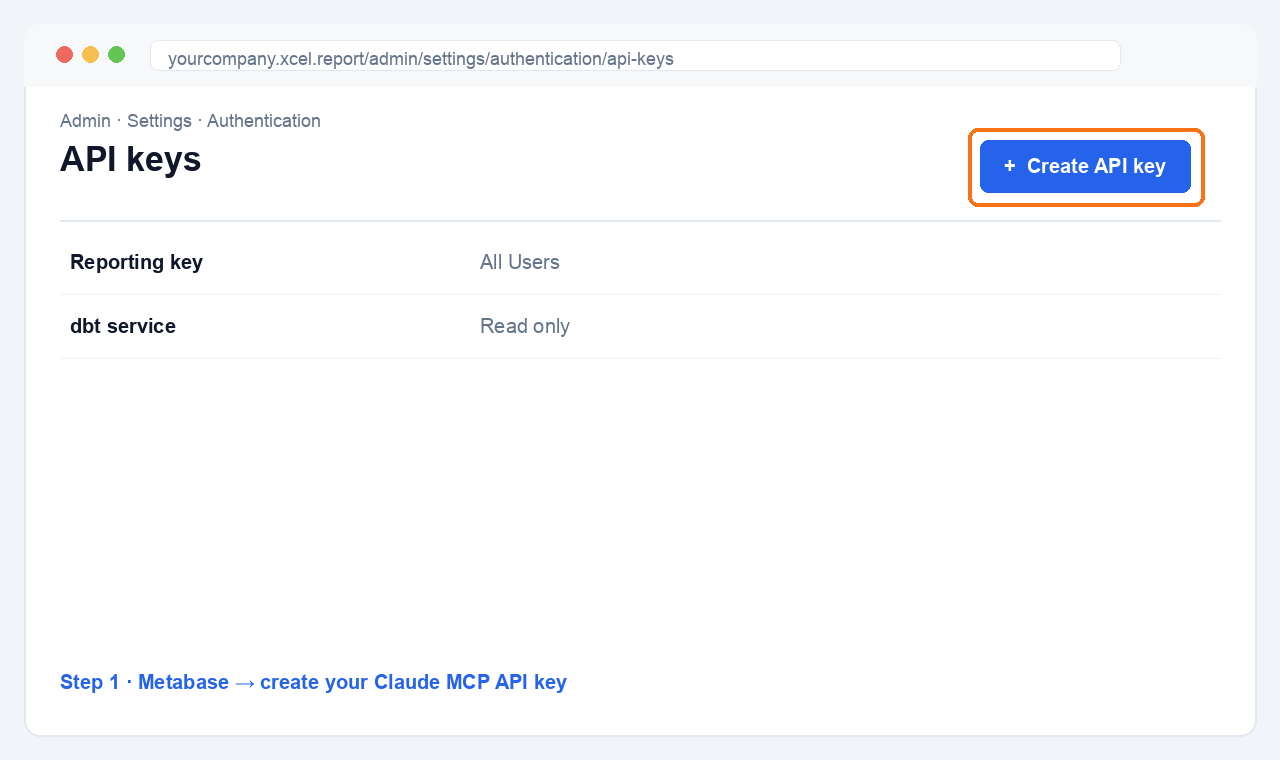
- Open your DataXcel workspace in a browser (
yourcompany.xcel.report) and sign in. - Click the gear icon (top right) and choose Admin settings.
- In the admin menu, click Settings, then Authentication.
- Click the API keys tab.
- Click Create API key.
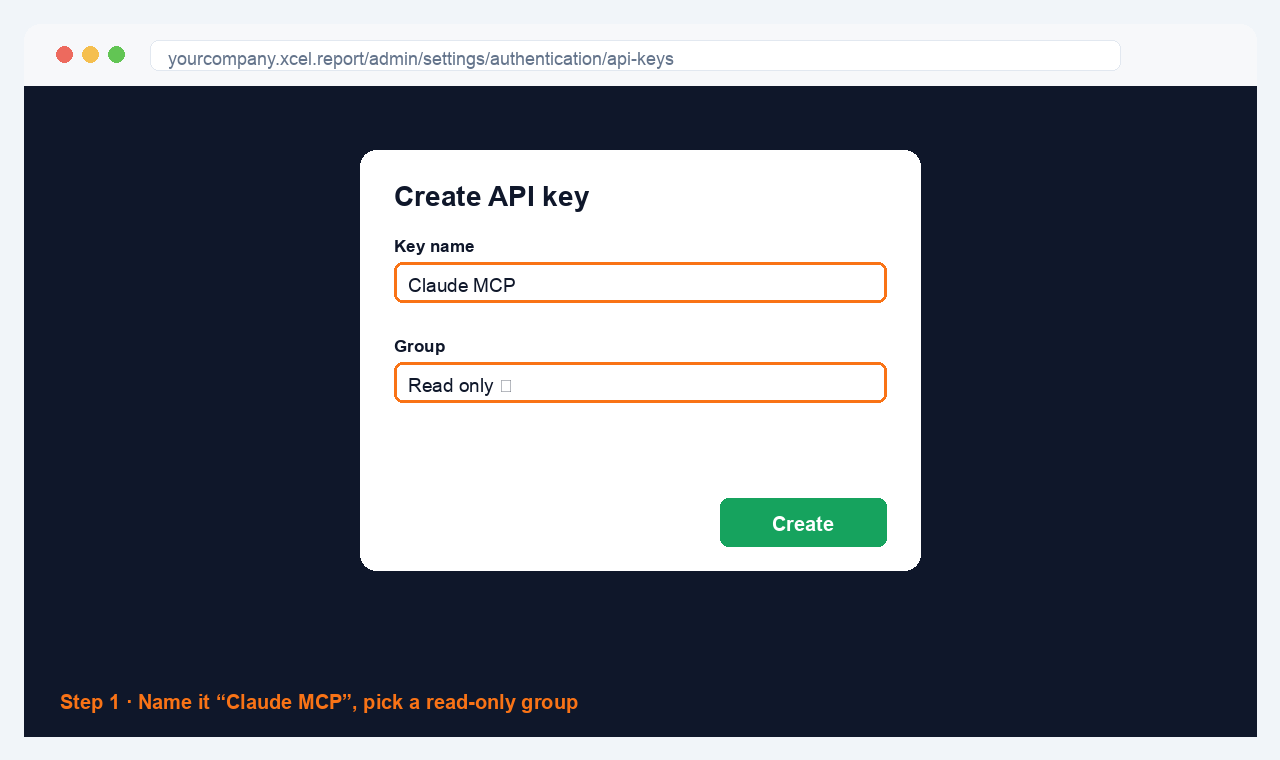
- Name it
Claude MCPso you'll recognize it later. - For Group, pick a read-only group (for example, "All Users" or any view-only group). This makes sure the key can look but never change anything.
- Click Create, then copy the key. It starts with
mb_....
Important — copy it now. Metabase shows the full
mb_...key only once. Paste it somewhere safe (a sticky note in a password manager is perfect) before you close that window. If you lose it, no harm done — you just delete it and make a new one.
Step 2 — Add the connector in Claude
Now we tell Claude where the DataXcel connector lives.
In Claude, open Settings.
Click Connectors.
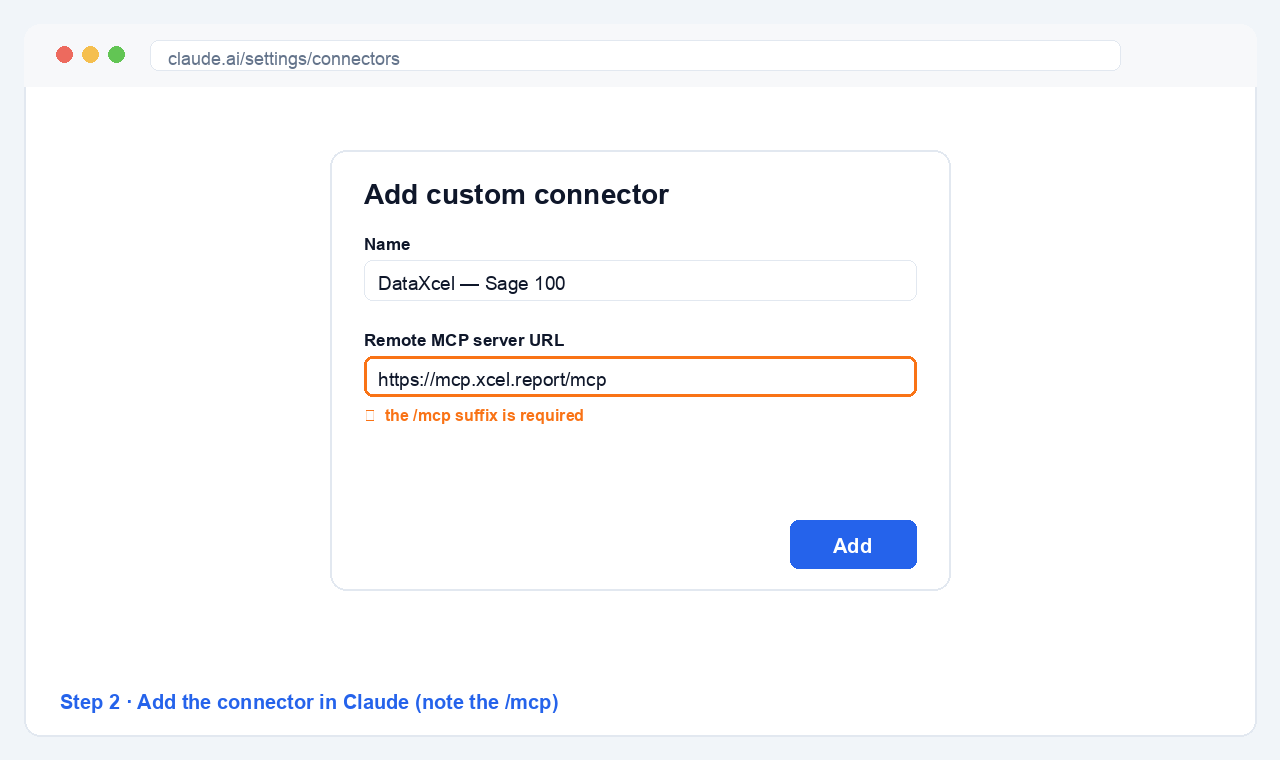
Click Add custom connector.
Name it something clear, like
DataXcel Sage 100.For the URL, enter exactly:
https://mcp.xcel.report/mcpClick Add.
Don't drop the
/mcpat the end. The address must end in/mcp. If you leave it off (justhttps://mcp.xcel.report), the connection will fail to authorize and Claude won't connect. Copy it exactly as shown above.
Step 3 — Sign in and connect your workspace
When you add the connector, Claude opens a DataXcel sign-in screen. This is where you point Claude at your data instead of the shared demo.
- Enter your email and company name in the sign-in form.
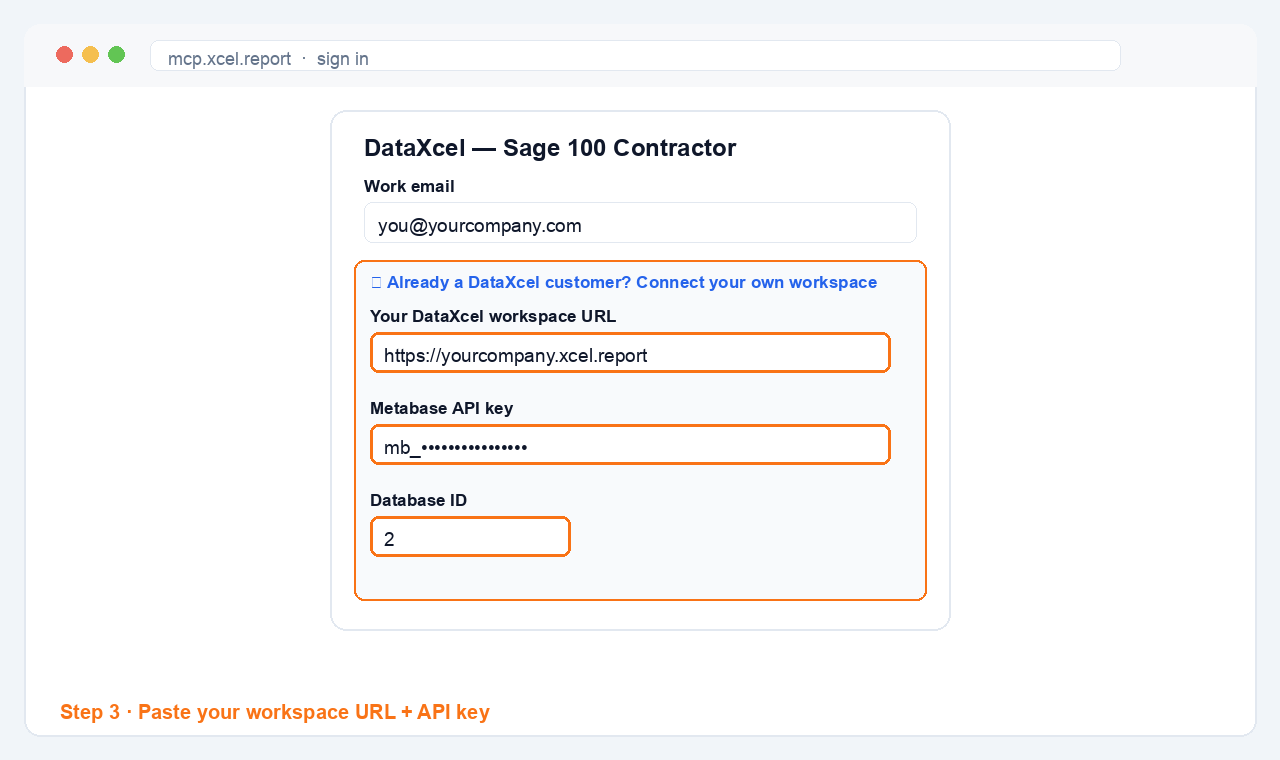
- Below the form, find and click "Already a DataXcel customer? Connect your own workspace." This expands a few more fields.
- Fill those in:
- Workspace URL — your site, e.g.
yourcompany.xcel.report - API key — the
mb_...key you copied in Step 1 - Database ID — the number for your Sage database (it's usually
2; if you're not sure, ask us and we'll confirm yours in a second)
- Workspace URL — your site, e.g.
- Click Connect.
Where do I find my Database ID? Most DataXcel workspaces use
2. If that doesn't work, drop us a note at mhagberg@xcel.software and we'll tell you the exact number. It takes us thirty seconds to look up.
Step 4 — Make sure it worked
Let's confirm Claude is reading your data and not the practice demo. In a new Claude chat, ask:
"List my 5 largest jobs by total cost."
Look at the answer:
- You see your real job numbers and names — names you recognize from your own Sage 100. That means you're connected. You're done with setup.
- You see unfamiliar, made-up job names (these are the shared demo data) — the workspace connection didn't take. Go back to Step 3 and double-check your workspace URL, API key, and database ID, then try again.
That's the whole test. If your real jobs show up, you're live.
Step 5 — Now try it for real
Here are some questions to get you started. Copy any of these into Claude and tweak the wording however you like — it understands plain English.
- "Which of my jobs are over budget, and by how much?"
- "Show me my WIP position — over-billed and under-billed jobs."
- "What's my total change-order exposure across open jobs?"
- "Break down my accounts payable by vendor."
- "Which jobs have the thinnest profit margin this quarter?"
- "How is job 101 tracking against its estimate?"
Tip: Tell Claude "keep your answers short and use a table when it helps." You'll get tidy, scannable results instead of long paragraphs.
A heads-up: write-back is available too
Everything above is read-only — Claude looks at your data but never touches it. That's the safe default, and it's all most folks need.
But the connector can do more. With write-back enabled, Claude can help you create change orders, draft AP invoices, and post journal entries — turning it from a reporting tool into a hands-on assistant. This is an optional upgrade we turn on per customer. If that sounds useful, just contact DataXcel and we'll enable it for you.
Ready to go further?
If you're a DataXcel customer, you already have everything you need above — go connect it. If you're not yet, this is exactly the kind of thing DataXcel unlocks for your team.
Want a hand setting it up, or want to see it on your own data first? Book a 15-minute setup call and we'll get you connected live, on screen, together.
— Mike Hagberg Founder, Xcel Software mhagberg@xcel.software · xcel.software